The conclusion drawn in my post, “Will ChatGPT A.I. Technology Replace Quality Organic Search Results?“, was premature. The generative artificial intelligence now in use on Bing.com has already improved upon basic (pre-A.I. powered) organic search engine results in very significant ways.
Posts
Will ChatGPT A.I. Technology Replace Quality Organic Search Results?
In case you haven’t heard, ChatGPT is new software that uses artificial intelligence (along with human “trainers”) to answer questions. Like many forms of natural language-based AI machine learning, the human trainers refine the answers and tell ChatGPT how it can improve them. Some answers to basic questions are surprisingly good, and others are not so hot.
The widespread excitement around ChatGPT is that it may replace human writers in some cases, or significantly reduce the time required to do less important writing work. Is this a huge leap forward in a long line of robot-based solutions to the need for written content? Microsoft is investing billions in the company that created ChatGPT, and is thinking about giving it a shot at improving search results in its Bing version of Google search. But, at least for the foreseeable future, I don’t think it’s going to as successful as all the latest buzz suggests.
According to knowledgeable sources, the Bing search engine will probably be using ChatGPT to answer some questions in its search results pages rather than what it currently offers as the “best” results. Why? Because they hope to beat Google at satisfying users, getting people to switch to Bing, and generating more ad revenue. Which one will win, ChatGPT-generated results or results from Google’s proven and constantly improving search algorithm? TL;DR Google.
As with Bing search results in general, Bing’s are currently inferior to Google’s. Let’s compare the search results for “chat gpt” in Bing vs. Google. Bing offers the Wikipedia definition for “Chat Generative Pre-Trained Transformer” as the first result at the top left of the page AND in the sidebar on the right. Redundant results are unhelpful.
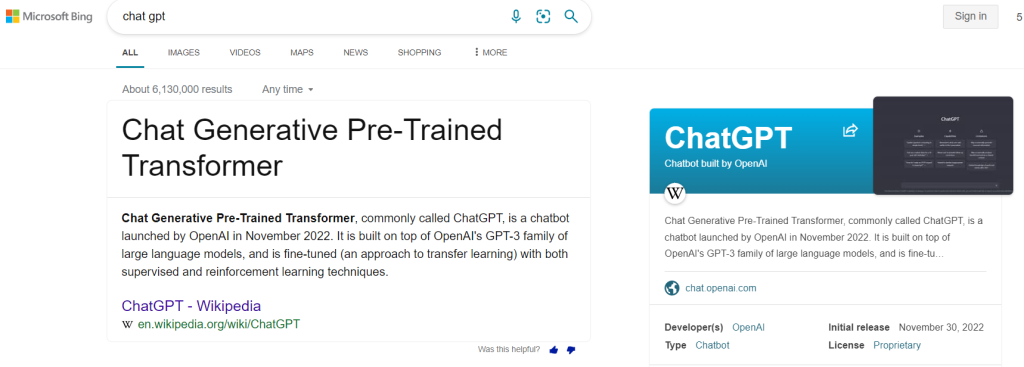
Google, on the other hand, offers a link to a page on the website of the company that created ChatGPT, OpenAI – along with other helpful links to the site, including the homepage – as the first result. Which of these is more useful? For one thing, the title of the Google result begins with the search term itself: “ChatGPT”. If I’m searching for “chat gpt” and not “chat generative pre-trained transformer”, I may not even know it’s the same thing. As the user experience saying goes, Don’t Make Me Think. Also, Google shows me the primary source, the most authoritative source for the explanation, from the OpenAI website, AND it puts the Wikipedia result in the sidebar at the top of the results page. Google lets me choose which one to read. Choice versus redundancy. Which do you prefer?
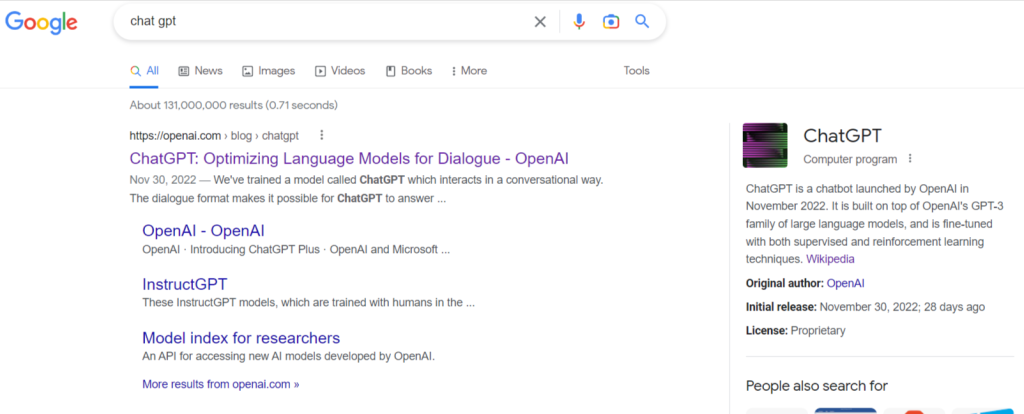
Most people will click the first result at the top left, rather than the one in the sidebar. This has been proven in many tests done on search results. But, if human readers do want more information from what is probably the second best result, Google offers the Wikipedia definition on the right.
And let’s think logically about the answer to the related question: Which result will be more authoritative and useful to the human reader, Wikipedia or ChatGPT’s AI generated result? Right now, the obvious answer is Wikipedia. It’s written by humans, curated by humans, and edited by humans. The best ChatGPT’s AI can do is APPROXIMATE Wikipedia and/or OpenAI’s answers. Human readers want human answers. ChatGPT is an ARTIFICIAL substitute. Could ChatGPT do better than either one? Maybe, just maybe, in the future. Right now the answer is clearly No.
Microsoft Bing is essentially going to perform a pointless A/B test. When the results are in, Google will win, and they won’t even have to lower the quality of their own results to do so.
Bing search results for “chat gpt”
(Author’s note: My blog post above was written on Jan 31, 2023. As of Feb 2, 2023, Bing results appear to have changed to match Google, and ads are appearing above the organic results.)
Organic Search Results for Insect Shield®
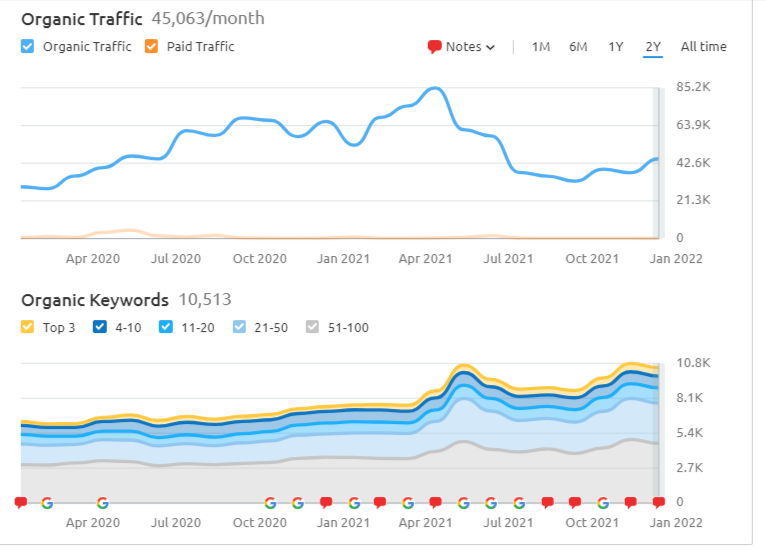
Here’s a look at Insect Shield’s growth in 2020 and 2021 on the organic search channel. Our business is highly seasonal, peaking in the spring. Compare April 2020 traffic to April 2021.
I did the work myself using Shopify, SEMrush, Google Search Console, Screaming Frog, Google Analytics, various keyword research tools, and a lot of hands on experience gained over the years.
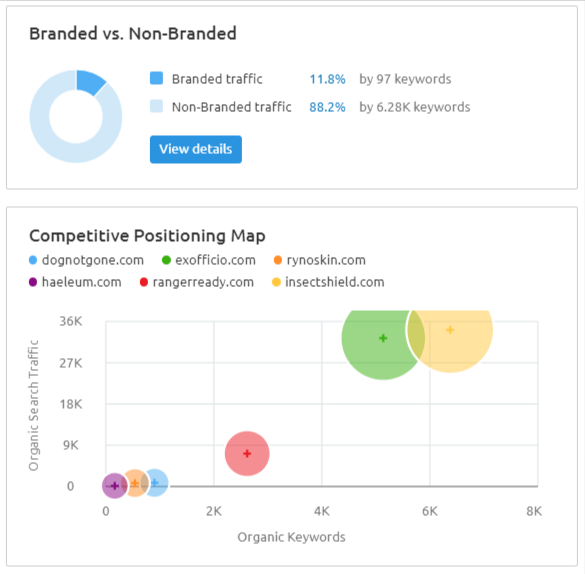
Note the progress we have made against our number one competitor, Amazon. We overtook them in June of last year. Today our visibility in SERPs for high conversion rate keywords like “insect repellent clothes”, “women’s insect repellent clothes”, and dozens more, is 43% vs. their 31% (bottom chart).
In July 2021, we added commercial content to one of our top informational search intent pages about insects. We saw a drop in overall traffic, but a significant improvement in conversions from that landing page. We will continue this strategy with other informational pages in 2022.
In the B2C world, very few eCommerce websites can beat Amazon for commercial search intent keywords, which is one reason B2C companies have to sell on Amazon to keep up. Amazon is no longer just an additional sales channel, it’s an absolutely essential sales channel. But which one would you rather have rank number one in search results on Google and Bing?
Do you want to pay the 15% fee to Amazon, as well as having to constantly give in to their methods of squeezing you on profit margins AND get no access to user information, like email or SMS messaging sign ups, and return purchase and life-time value metrics? Or would you rather sell from your own website, keep your own profit margin, and get all that highly valuable user data? The choice is obvious: optimize your own website for organic search, and then, of course, optimize your Amazon product descriptions for search, as well. McBuzz Communications can help you do both.

Second Thoughts?
Shopify was the right choice for our new ecommerce platform.
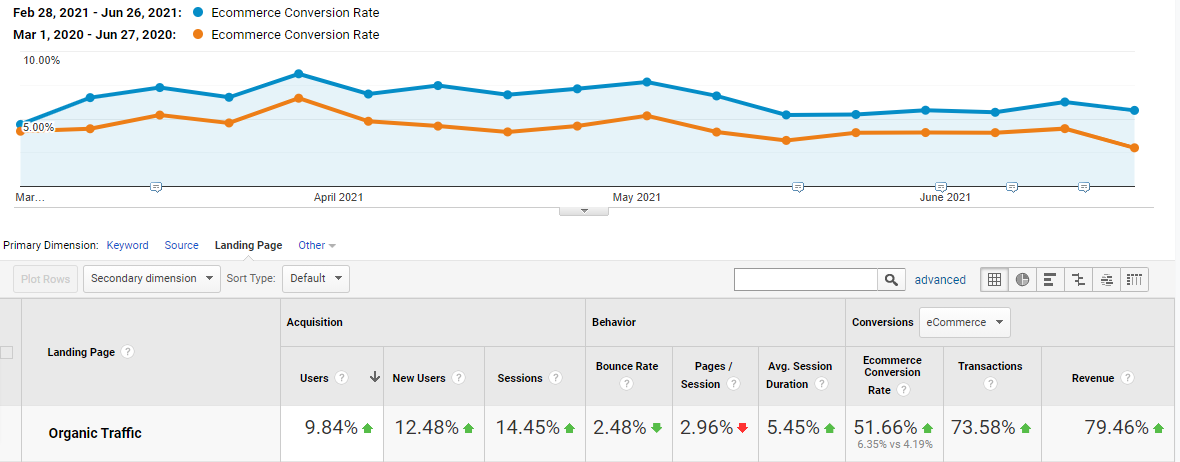
On January 12, 2021, Insect Shield moved from a first generation ecommerce platform called Able Commerce to Shopify. The difference has been striking.
Making improvements to usability and search engine performance is so much easier. Things that would have taken hours using a $125/hour developer can now be done in 60 minutes or less by a $75/hour contractor. Adding pages, making updates, edits and basic SEO can be done quickly and easily in-house.
The selection of apps available to add features and functionality is truly amazing. We use an insanely good, free app for our affiliate program that would have cost thousands of dollars to integrate with our legacy web platform.
Most remarkable is what happened to our ecommerce conversion rate. Our organic search conversion rate went from 4.2% to 6.3%. Paid search CVR went from 4.6% to 6.4%. And, as you might expect (because Shopify is a modern, user experience-focused platform), our overall conversion rate on mobile increased by 36%: from 2.7% to 3.7%. When 60% of sessions are on mobile, a 3.7% CVR drives serious revenue growth.
We transferred a solid site structure and nice look-and-feel over from our old site, but the conversion rate success is primarily due to Shopify. None of us at Insect Shield has second thoughts about moving to the new platform.
Initial Thoughts
Hello. You’ve found the McBuzz website, digital home of Mark McLaren.
Not much to say at the moment, except that we’re living in wild times. Mask up, people.